Key takeaways
- Of six field apps, five have company pages that document offline use. Only meteocontrol VCOM describes conflict behaviour, and it warns of data loss.
- Photos dominate the queue. In the invented example (6 jobs, 40 photos each at 3.5 MB), photos are 99.96% of the 840.36 MB. It takes about 140 minutes to clear at 1 Mbit/s.
- The merge rule decides what survives. In the example record of 6 edits, a whole-record rule overwrote 3, a field-by-field rule overwrote 2, and holding overlaps overwrote 0.
- Test with airplane mode on, and edit the same job on two devices, before you buy.
Four of the six tools below are field-service or O&M apps, so see the best solar field service management software. For survey apps, see the best solar site survey apps.
Offline mode at a glance
Offline mode is a storage and sync design, not one feature. It has a capture side, a queue and a merge rule.
| Item | Detail |
|---|---|
| Parts | Local capture on the phone, a queue of pending changes, a sync step, and a rule for clashing edits. |
| Unit and range | Queue size in MB and time in minutes. Photos set most of it. The example 6-job example: 840.36 MB. |
| Where it matters | Surveys, installs, inspections and O&M visits where signal is weak or absent. |
| Standard or rule | No standard. Each company sets its own limits and merge rule. |
| In software | Field service, survey, inspection and O&M apps. See the table below. |
Why does offline mode matter for installers?
A crew that loses signal on a roof, in a meter room or on a plant needs the app to keep taking records. If it stops, the crew writes on paper and types it up later.
Those records flow into other documents. Survey data goes into design (see site survey). Test readings and photos go into the commissioning record and the handover pack. Photo practice has its own page: site photo documentation.
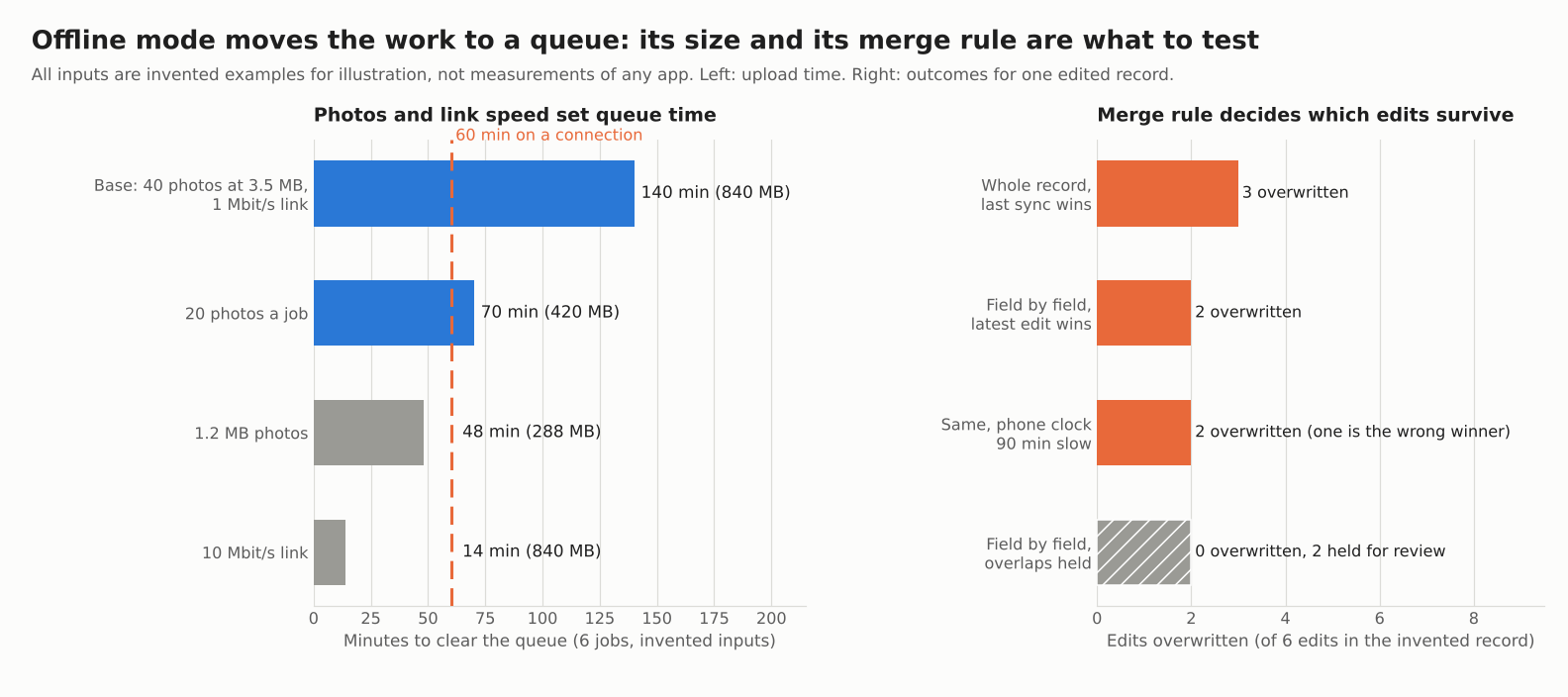
Figure 1. In the examples, photo size and link speed set the queue time, and the merge rule sets how many edits are overwritten.
What works offline, and what does not?
Recording work on the device works offline on the company pages we read. Anything that needs the server or another person does not.
| Task | What the pages read say |
|---|---|
| Forms and checklists | Coperniq: previously opened forms stay accessible (number, text, date, dropdown). ServiceTitan lists forms and checklists. VCOM saves form input on the device. |
| Photos and files | ServiceTitan lists photos and media. Coperniq says photos and files can be attached to forms. CompanyCam queues captures for upload. |
| Signatures | ServiceTitan: on-device signatures work. Sending an e-signature request link needs a connection. |
| Time tracking | Coperniq and ServiceTitan list it as working offline. CompanyCam lists time entries too. |
| Needs a connection | Coperniq: sending forms for review, new tasks, records never opened online. ServiceTitan: current upgrade pricing, card swipe and Tap to Pay, purchase orders. CompanyCam: checklist fields not opened before going offline. |
Raptor Maps works differently. Its download page calls Raptor Solar an "offline-first mobile experience" and says you download a site before you go, one circuit block at a time.
How does offline sync work?
The app saves changes on the phone and sends them when a connection returns. Companies differ on timing, retries and how long cached data lasts.
- Automatic upload. Coperniq says offline work syncs automatically once you reconnect. ServiceTitan says no manual action is required to sync.
- Retries. Coperniq’s help page (no absolute date) says it retries a failed item up to three times, then shows it on a sync status screen. CompanyCam’s upload troubleshooting page (5 August 2026) describes manual Retry buttons. Its offline article says captures upload on their own once you are back online.
- Freshness window. The same Coperniq page says it keeps task data available offline for up to 24 hours after it was last loaded.
- Timer or manual sync. VCOM’s page gives a default automatic sync interval of 15 minutes. It cannot sync while offline.
How are sync conflicts handled?
A conflict happens when the phone and the office both change the same record before the phone syncs. The tool’s merge rule then decides which edit survives.
Among the company pages listed, only meteocontrol VCOM describes this. It says a form cannot be locked when you open it offline, so others will not know. It recommends opening forms while you are still online. Separately, it warns that opening a form locked by another technician can lead to data loss, and describes a case where one assignee’s input is overwritten. The Coperniq, ServiceTitan and Raptor Maps pages listed do not describe conflict handling.
The table shows one example record with 6 edits: 3 on the phone offline, 3 in the office. The phone syncs at 14:05. Fields edited on both sides are roof pitch and notes. Policies are a model, not any company’s.
Each row shows which value survives under one merge rule.
| Merge rule | Roof pitch | Notes | Main breaker / customer phone | Edits overwritten |
|---|---|---|---|---|
| Whole record, phone syncs last | Phone’s | Phone’s | Phone’s / Old value | 3 (all office edits) |
| Whole record, office saves last | Office’s | Office’s | Old value / Office’s | 3 (all phone edits) |
| Field by field, latest edit time wins | Phone’s (10:10 beats 09:40) | Office’s (13:00 beats 11:00) | Phone’s / Office’s | 2 |
| Same, phone clock 90 minutes slow | Office’s, the wrong winner | Office’s | Phone’s / Office’s | 2 |
| Field by field, overlaps held for review | Held | Held | Phone’s / Office’s | 0 (2 held) |
Whole-record rules lose the most work. Field-level rules lose only the overlap. A wrong device clock can pick the wrong winner. Holding overlaps loses nothing, but a person has to decide.
Worked example: a day of photos with no signal
A crew finishes 6 jobs in a dead zone. All inputs are example. Each job has 40 photos at 3.5 MB, plus 20 KB of form data, 30 KB of signature and 10 KB of measurements. Back online, the app gets 80% of a 1 Mbit/s link. Each row below changes one setting.
| Setting (example) | Queue | Time to clear | Clears in 60 min? |
|---|---|---|---|
| Base: 40 photos at 3.5 MB, 1 Mbit/s | 840.36 MB | 140.06 min | No (480.36 MB left) |
| 20 photos a job | 420.36 MB | 70.06 min | No (60.36 MB left) |
| 1.2 MB photos | 288.36 MB | 48.06 min | Yes |
| 10 Mbit/s link | 840.36 MB | 14.01 min | Yes |
The method: queue MB is jobs times (photos times photo MB, plus form, signature and measurement KB divided by 1,000). Time is MB times 8, divided by usable Mbit/s. Forms, signatures and measurements add 0.36 MB, so photos are 99.96% of the base queue.
Real phones may cut photo size, retry failures or throttle background uploads. Treat these figures as a size check, not a forecast.
Check your own queue and conflicts
Enter your jobs, photo count, photo size and link speed. Part 2 counts overwritten edits for three merge rules. It loads the example first. If the calculator does not load, open the offline sync calculator on its own page.
What should you test before buying?
Run six tests on a real phone, with a real job template. Do them during a trial, before you sign.
- Turn on airplane mode, then fill a form, take photos, add a signature and type measurements.
- Force-close the app while offline, reopen it, and check the data is still there.
- Open a job you never opened online. The Coperniq page says forms never opened online are unavailable offline.
- Edit the same field in the office and on the phone, then sync. Record which edit survives, as in the conflict table.
- Set the phone clock wrong by an hour and repeat test 4.
- Queue a full day of photos, then time the upload. Check retries, failed-item screens and what happens if you delete the app with items unsynced.
Ask the company for the cache window, the merge rule and the photo size setting in writing. For alarm-driven visits, see CMMS and work orders.
How solar software handles offline mode
Five of the six tools document offline use, and only VCOM states a conflict rule. Pages listed October 2026.
| Software | Offline documented? | Conflict rule stated? | Page and date |
|---|---|---|---|
| meteocontrol VCOM | Yes | Yes | VCOM help, work orders in the O&M app, last updated 22 October 2026 on the page. |
| Coperniq | Yes | Not stated | Coperniq support, offline mode for forms and time tracking, no absolute date shown on the page. |
| ServiceTitan | Yes | Not stated | ServiceTitan help, field mobile app offline capabilities, published and updated 29 October 2026 on the page. |
| Raptor Maps | Yes | Not stated | Raptor Maps knowledge hub, two pages, no date shown (copyright 2025). |
| Scanifly | Not stated | Not stated | Scanifly help, two pages, no date shown (copyright 2026). |
| CompanyCam | Yes | Not stated | CompanyCam help, offline mode article, 9 September 2026 on the page. Upload page 5 August 2026. |
What each page says:
- meteocontrol VCOM: O&M app: "All your input is auto-saved on your local device while working in the form." Sync is not possible offline. Default automatic interval 15 min. It warns that opening a form locked by another technician can lead to data loss, and describes one assignee’s input being overwritten.
- Coperniq: Forms and time tracking work offline. Sending forms for review and creating tasks need a connection. Task data stays for up to 24 hours.
- ServiceTitan: Notes, signatures, photos, time tracking and findings work offline. Some items need a connection.
- Raptor Maps: The Raptor Solar app "works in offline mode, simply download your site for offline use". One circuit block at a time.
- Scanifly: The mobile app and checklist pages describe capture and upload in the field. They do not mention offline use.
- CompanyCam: "Everything you capture sits in a queue and uploads on its own once you’re back online." You can only complete checklist fields you opened before going offline. The article does not describe conflicts.
Not stated: the company page we cite does not say. That does not show the app lacks the feature. To compare apps, see the best solar site survey apps.
Common mistakes with offline mode
FAQs
Do solar field apps work without signal?
Some do. Of the six apps listed, five have company pages that document offline use. The pages differ on what works and how long data stays. Test your own job template in airplane mode.
What happens to photos taken offline?
They are saved on the phone and queued. Coperniq’s undated page says items sync once you reconnect and retries a failed item up to three times. CompanyCam’s offline article says captures sit in a queue and upload on their own once you are back online.
How much data does a day of site photos use?
Photo count and size decide it. The example of 6 jobs at 40 photos each at 3.5 MB is 840.36 MB. Use the calculator with your own phone’s photo size.
What if two people edit the same job?
One edit can overwrite the other, depending on the tool’s merge rule. VCOM warns that opening a form locked by another technician can lead to data loss. Ask the company, then test it with two devices.
Related terms
- Site survey: collecting roof, electrical and site data before design.
- Work order: the job record a field crew completes and closes.
- Photo documentation: the site photos that prove work done.
- CMMS: software that tracks maintenance work and history.
Next step: run the six tests above in a trial, and use the best solar site survey apps list to pick which apps to trial.
Sources
- meteocontrol VCOM help: work orders in the O&M app, last updated 22 October 2026 (checked November 2026).
- Coperniq support: offline mode for forms and time tracking, no absolute date (checked October 2026, rechecked 30 October 2026, still no absolute date).
- ServiceTitan help: field mobile app offline capabilities, published and updated 29 October 2026 (checked November 2026).
- Raptor Maps: Raptor Solar mobile app overview and download a site for offline use, no date shown (checked October 2026).
- Scanifly help: mobile app and completing checklists in the field, no date shown (checked October 2026).
- CompanyCam help: photos and videos are not uploading, 5 August 2026 (checked October 2026).
- CompanyCam help: Using Offline Mode, 9 September 2026 on the page (checked 30 October 2026).
Last updated 30 October 2026. Next scheduled review: 30 January 2027.