Key takeaways
- SketchUp’s Shadows help (updated 29 September 2026) calls the result "a general idea of how the sun or shadows will look". It gives no accuracy figure.
- Shadows need a geolocated model. The calculation uses latitude, longitude, the model’s orientation and the selected time zone. Those four settings are the first thing to test.
- In an example (1.5 m post, London, 21 December), a time zone one hour out moves the tip 1.50 m at 12:00 and 8.11 m at 10:00. A 5 degree north error moves it only 0.49 m at 12:00.
- Skelion is the only placement extension we checked, and its Partly rating rests on a 2019 SketchUp blog. Only SunDiagram Pro documents an export, as images.
To compare tools that replace a SketchUp workflow, see the best 3D solar design software. For shade work, see the best solar shading analysis software.
SketchUp solar plug-in at a glance
SketchUp is the 3D model. The extension adds solar jobs on top. Each extension decides its own method and output.
| Item | Detail |
|---|---|
| What it adds | Module placement on roof faces, a shadow or sun study, and reports or export. Which of these you get depends on the extension and its licence. |
| Host | SketchUp. The extension runs inside it and uses its model, units and shadow settings. |
| Where it matters | Quick roof layouts, shade checks on a 3D model, client visuals, hand-off to simulation tools. |
| Standard or rule | No standard for SketchUp solar extensions. Each tool states its own method. |
| In software | SketchUp’s Shadows panel is built in. Placement and energy features come from extensions such as Skelion. |
Why does a SketchUp solar plug-in matter for installers?
Many designers already model buildings in SketchUp. An extension saves you rebuilding the roof in a solar tool. The risk: a good-looking shadow can hide a wrong setting.
The shade figure may end up in a proposal or an incentive file. See shade report for what programmes ask. Check the method before the number goes out.
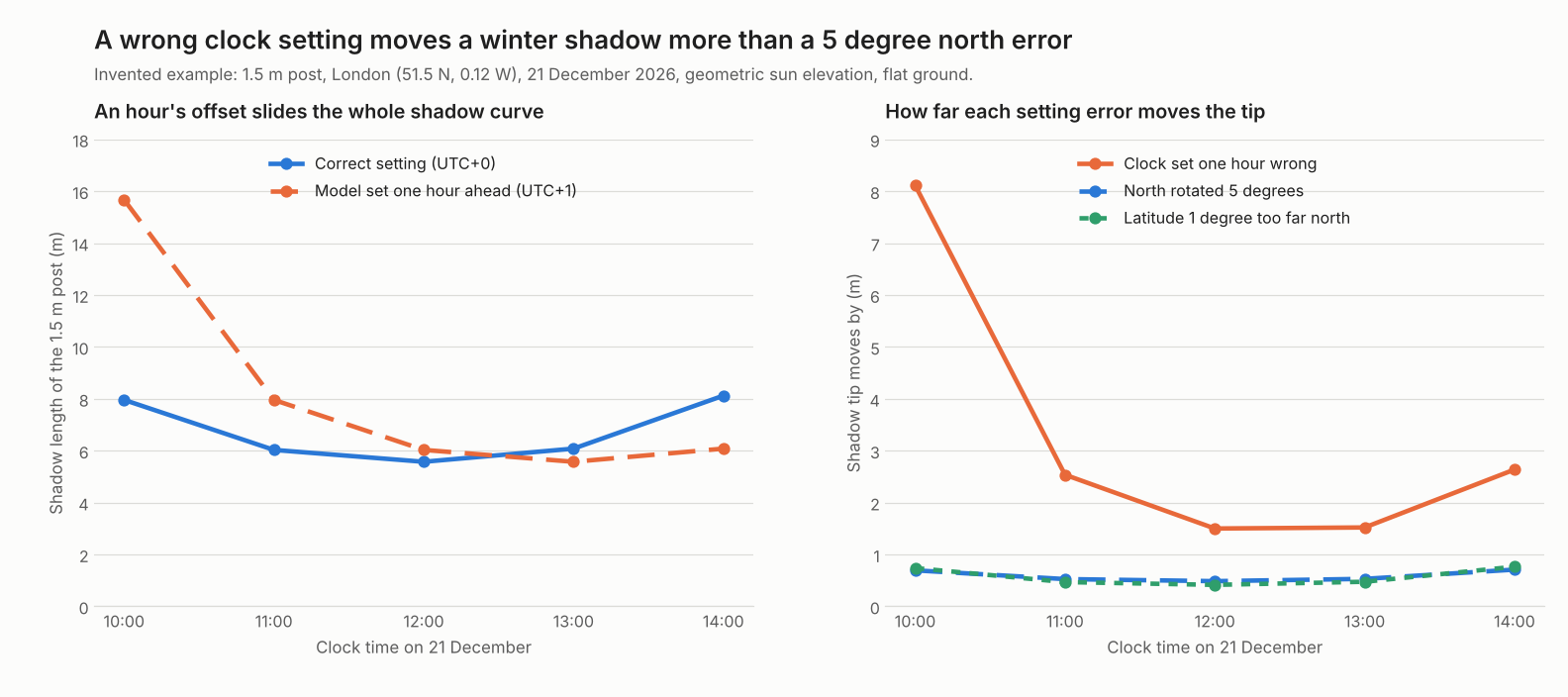
Figure 1. For this 1.5 m post (example inputs), a one-hour time zone error moves a winter shadow tip further than a 5 degree north or 1 degree latitude error. Points are hourly clock times.
What does a SketchUp solar extension do?
It does up to 3 jobs inside SketchUp: place modules, study shadows and report or export. Companies differ on which they cover.
- Place modules. You pick a roof face. The extension fills it with modules at a set tilt and orientation. SketchUp’s 2019 blog on Skelion says you pick a surface and click the solar cell logo. The plug-in "automatically inserts the solar panels on your selected surface". It also says modules can be placed in portrait or landscape. For the layout rules, see solar panel layout.
- Study shadows. The same article says setup asks for tilt, orientation and "a shading range for a given day". Shade depends on the 3D model, so see 3D solar modelling and shading analysis.
- Report or export. The article says the Pro version adds "energy reports". It does not state an export format. Export is a check item below.
The model still needs good inputs. Roof planes come from a tape, imagery or LiDAR. See roof measurement.
Where does SketchUp’s own shadow tool stop?
SketchUp’s Shadows feature draws shadows for a place, date and time. Its help calls the result "a general idea", and the settings it lists include no shaded-area or energy output.
SketchUp’s Casting Real-World Shadows page (updated 29 September 2026) says "You must geolocate your model before using the Shadows feature". It lists six settings: show or hide shadows, time and date, light and dark, sun for shading, faces and ground. It says the calculations use the model’s latitude and longitude, its cardinal orientation and the selected time zone.
The Geolocating with Add Location page (same date) shows an arrow for true north on the model. It lets you adjust the true north offset. Neither page names the sun-position method or gives an accuracy figure.
- A picture, not a percentage. You see where a shadow falls at one moment. A yearly solar access figure needs many time steps and a count of shaded area. See shading analysis.
- Four inputs you must set right. Latitude, longitude, north and time zone are yours to set. The next section shows what they cost when wrong.
- Near objects only. A model holds near objects. Distant hills are a horizon profile. See near vs far shading.
What should you check before choosing a SketchUp solar extension?
Check five things: units, the solar position source, how shade is counted, what it exports and the licence limits. Test each with a known case.
| Check | Ask or test |
|---|---|
| Units | Which unit does it expect for module size and write on export? A model in millimetres read as metres is 1,000 times too big. See CAD, DWG and DXF files. |
| Solar position | Does it use SketchUp’s sun or its own? Which time zone and north does it read? Run the post test below. |
| Shade method | Does shade count the whole model or only the modules? Is it area in shade or lost energy? Put a known obstruction on the roof and see if it shades the modules. |
| Export | Which formats? PVsyst imports 3ds, DAE and PVC 3D scenes (PVsyst help, Arka 360 help, 10 December 2025). Ask whether the extension writes one. See PVsyst report. |
| Licence limits | Free tiers can cap modules. A forum user quoted a dialog saying "Free version allows only 10 panels" on 24 June 2025. Confirm current limits with the company. |
Here is the post test, in five steps:
- Pick a date and time with a low sun, such as a winter morning.
- Set location, time zone and north in SketchUp. Include summer time in the offset.
- Place a vertical post of known height on flat ground.
- Measure the shadow tip with SketchUp’s tape.
- Compare with the calculator below. We suggest agreement within 2% of shadow length. That is our suggestion, not a standard.
Worked example: what a wrong setting does to one shadow
For a 1.5 m post in London, a one-hour time zone error moves the noon shadow tip by 1.50 m. The same shadow is 5.57 m long.
| Input (example) | Value |
|---|---|
| Site | London, 51.5 N, 0.12 W |
| Date and clock | 21 December 2026, UTC+0, 10:00 to 14:00 |
| Object | Vertical post, 1.5 m, on flat ground |
| Sun method | NOAA formulae, geometric elevation (no refraction) |
| Errors tested, one at a time | Model time zone one hour ahead. Model north rotated 5 degrees clockwise. Model latitude 1 degree too far north |
| Clock time | Sun elevation / azimuth (degrees) | Shadow length (m) | Tip moves: time zone 1 h / north 5 degrees / latitude 1 degree |
|---|---|---|---|
| 10:00 | 10.7 / 153 | 7.96 | 8.11 m / 0.69 m / 0.74 m |
| 11:00 | 14.0 / 166 | 6.03 | 2.54 m / 0.53 m / 0.47 m |
| 12:00 | 15.1 / 180 | 5.57 | 1.50 m / 0.49 m / 0.41 m |
| 13:00 | 13.9 / 194 | 6.08 | 1.52 m / 0.53 m / 0.47 m |
| 14:00 | 10.5 / 208 | 8.12 | 2.64 m / 0.71 m / 0.76 m |
Azimuth is measured from north, clockwise. Shadow length is height divided by the tangent of the elevation. See 3D solar modelling for that formula on roofs.
- Time zone is the big one. An hour of error shifts the sun by about 15 degrees of hour angle. At 10:00 the sun is only 10.7 degrees up, so the tip moves 8.11 m.
- North is small near noon. A 5 degree turn moves the tip by 2 × 5.57 × sin(2.5 degrees) = 0.49 m at 12:00.
- Low sun makes it worse. At 09:00 and 15:00 the sun is 5.5 and 5.2 degrees up. The shadow is 15.68 m and 16.57 m. At 15:00 the clock error moves the tip 8.84 m.
- Summer forgives. On 21 June (UTC+1) at 13:00 the post’s shadow is 0.80 m. A one-hour error moves the tip 0.41 m.
Limits: one example site, a thin post, flat ground, geometric elevation, and the page’s own formulae, not SketchUp’s. So this shows the size of each error, not how SketchUp’s shadows compare.
Calculator: check a shadow against the sun
Enter your latitude, longitude, date, time and UTC offset. It returns the sun’s position and the shadow of a post. Add a time zone, north or latitude error to see the shift.
If the calculator does not load, open the SketchUp shadow check calculator in its own page.
How solar software handles SketchUp solar work
Only three tools are rated here, so treat this as a starting list, not a market view. Skelion is the only placement extension in this check, and its rating rests on a 2019 SketchUp blog post. SketchUp’s own Shadows panel and SunDiagram Pro are rated Yes for shadows, and only SunDiagram Pro documents an export. Ratings come from the sources listed under the table. Not stated: the source we cite does not say. Partly: the source covers part of the job. Not a solar tool: the product is not built for that job.
| Tool | Module placement | Shadow study | Export |
|---|---|---|---|
| SketchUp (Shadows panel) | Not a solar tool | Yes: shadows for a geolocated model at a set time and date | Not stated |
| Skelion | Partly: SketchUp’s blog says it inserts panels on a selected surface, free version included | Partly: setup asks for a shading range for a given day | Not stated |
| SunDiagram Pro | Not stated | Yes: sequential shadow scenes by time interval and date | Batch export of shadow scenes as images |
- SketchUp (Shadows panel): updated 29 September 2026 from SketchUp help on Casting Real-World Shadows and Add Location.
- Skelion: SketchUp blog of 16 August 2019 is the basis for both ratings. A SketchUp forum thread, 24 June 2025, notes a 10-panel limit in the free version.
- SunDiagram Pro: the Sketchucation listing says it generates sequential shadow scenes by time interval and date, with a 3D sun path and daylight-saving handling. Sources are the Sketchucation plug-in page, v4.5.4, undated, and the Gumroad listing, October 2026, price listed as 45.0 USD.
For tools that draw roofs and layouts without SketchUp, see the best solar design software.
Common mistakes with SketchUp solar plug-ins
FAQs
Does SketchUp have a built-in solar tool?
It has a Shadows panel, not a solar design tool. SketchUp’s help describes shadows for a geolocated model at a set time and date. Placement and energy reports come from extensions.
Are SketchUp shadows accurate enough for a shade report?
SketchUp’s help calls them "a general idea" and gives no accuracy figure. Your programme decides which tools it accepts. See shade report. Settings errors can matter more than the method.
Why does my SketchUp shadow differ from another tool?
Check time zone, summer time, north and latitude first. With our example inputs, a one-hour time zone error moved a noon shadow tip by 1.50 m. A 5 degree north error moved it 0.49 m.
Is Skelion free?
Skelion has a free version that inserts panels automatically, and Pro adds energy reports (SketchUp blog, 2019). A forum user quoted a 10-panel limit in June 2025, so confirm today’s terms with the company.
Can I send a SketchUp solar model to PVsyst?
Only if the extension writes a format PVsyst reads. PVsyst imports 3ds, DAE and PVC 3D scenes, per PVsyst’s own help and Arka 360’s help (10 December 2025). Check which one your tool writes.
Related terms
- 3D solar modelling: the scene a shadow is cast on.
- Shading analysis: the yearly solar access calculation.
- Solar panel layout: where modules sit on the roof.
Next step: if SketchUp shadows are not enough, look at the best 3D solar design software for tools built around solar models.
Sources
- SketchUp help: Casting Real-World Shadows, updated 29 September 2026 (checked October 2026).
- SketchUp help: Geolocating with Add Location, updated 29 September 2026 (checked October 2026).
- SketchUp blog: Skelion, a solar energy design plugin for SketchUp, 16 August 2019 (checked October 2026).
- SketchUp Community: Skelion extension limiting to 10 panels, 24 June 2025, user posts only (checked October 2026).
- Sketchucation: Sun Diagram Pro plug-in page, v4.5.4, undated (checked October 2026).
- Gumroad: Sun Diagram Pro, undated listing (checked October 2026).
- PVsyst help: Sketchup and other CAD software (checked 30 October 2026). Also the PVsyst 8 tutorial on exporting a 3D scene (checked 30 October 2026).
- Arka 360 help: PVsyst 3D scene import, 10 December 2025 (checked October 2026).
- Method: NOAA general solar position formulae. Checked against pvlib 0.16.1.
Last updated 30 October 2026. Next scheduled review: 30 January 2027.